The latest improvements & new capabilities in Fluint.
Product Updates

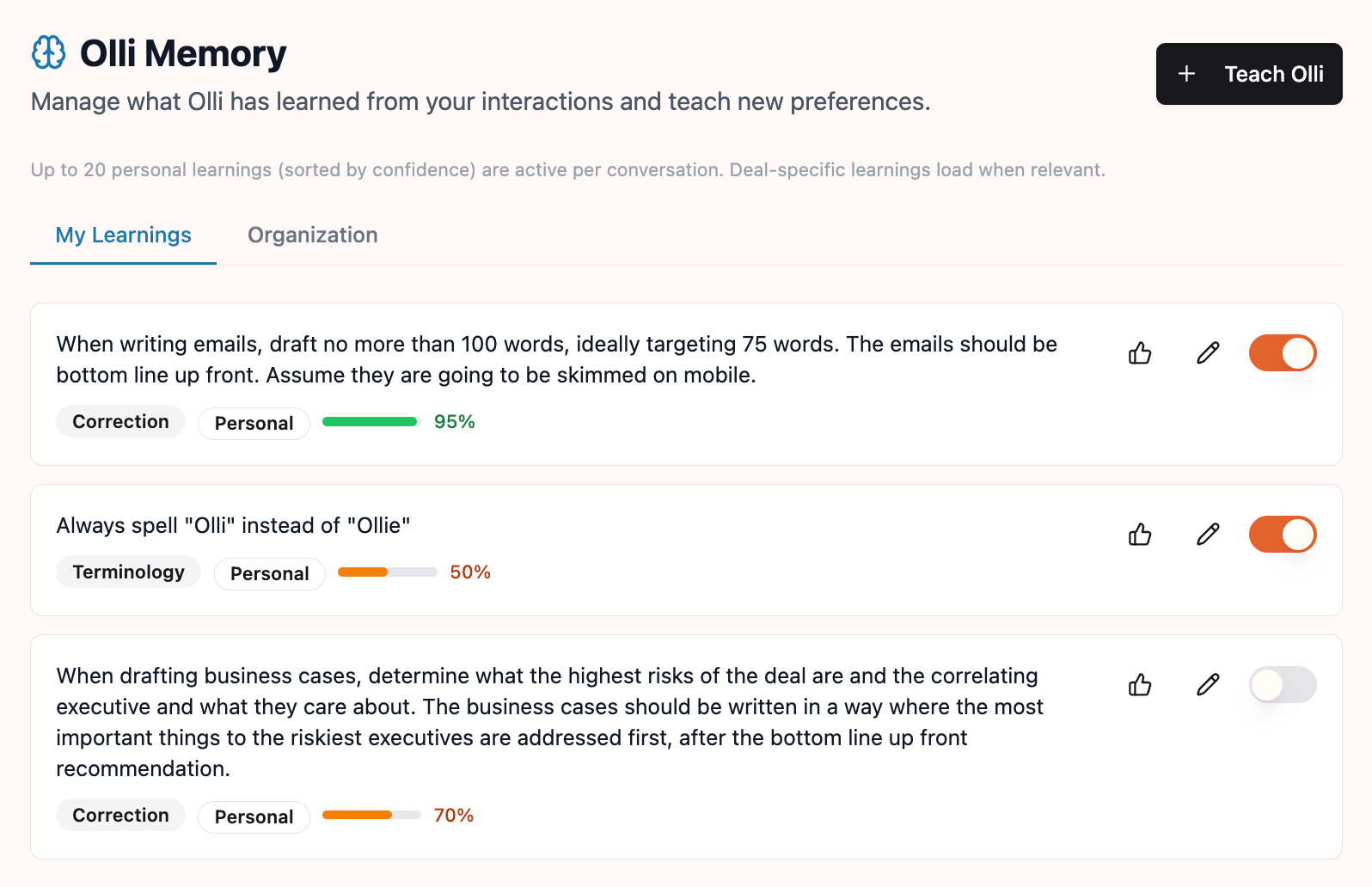

Olli Memory: The More You Use It, The Better It Gets
Olli now remembers your preferences, from your personal writing style to your company’s messaging standards.
Why it matters
The biggest friction in using AI for sales is having to "re-teach" the model your specific tone, formatting, or strategic angles every single time you start a new chat. If you prefer leading with ROI instead of technical features, you shouldn't have to say it twice.
Olli Memory turns every correction into a permanent asset. By capturing these nuances—like "make this shorter" or "frame this around cost savings"—Olli builds a library of your personal and organizational "tribal knowledge." For sales leaders, this means new hires don't just get a tool; they inherit the institutional memory of how your team wins deals, right from day one.
How it works
Corrections that stick: Redirect Olli mid-conversation and he captures the preference on the spot. A capture indicator appears inline so you know the "learning" was saved.
Visible attribution: Transparency is key. When Olli applies a saved preference, he shows you an attribution chip so you know exactly which logic he’s following.
Two levels of memory: Olli distinguishes between your personal flair and your organization’s messaging standards, ensuring your unique voice stays yours while the company’s brand stays consistent.
The "What Olli Knows" panel: Click the brain icon in the sidebar during any chat to see active learnings grouped by type, giving you full visibility into Olli's current "mindset."
Full control: The Olli Memory view in your settings allows you to edit, toggle off, or manually add preferences at any time.
Getting Started
- Correct Olli naturally in any chat ("make this shorter" or "lead with ROI") and watch the capture indicator appear.
- Click Manage on the capture indicator to review the learning and adjust its scope.
- In your next conversation, look for the attribution chip to see which preferences were applied.
- Open Olli Memory under Settings in the sidebar to review, edit, or manually teach Olli something new.
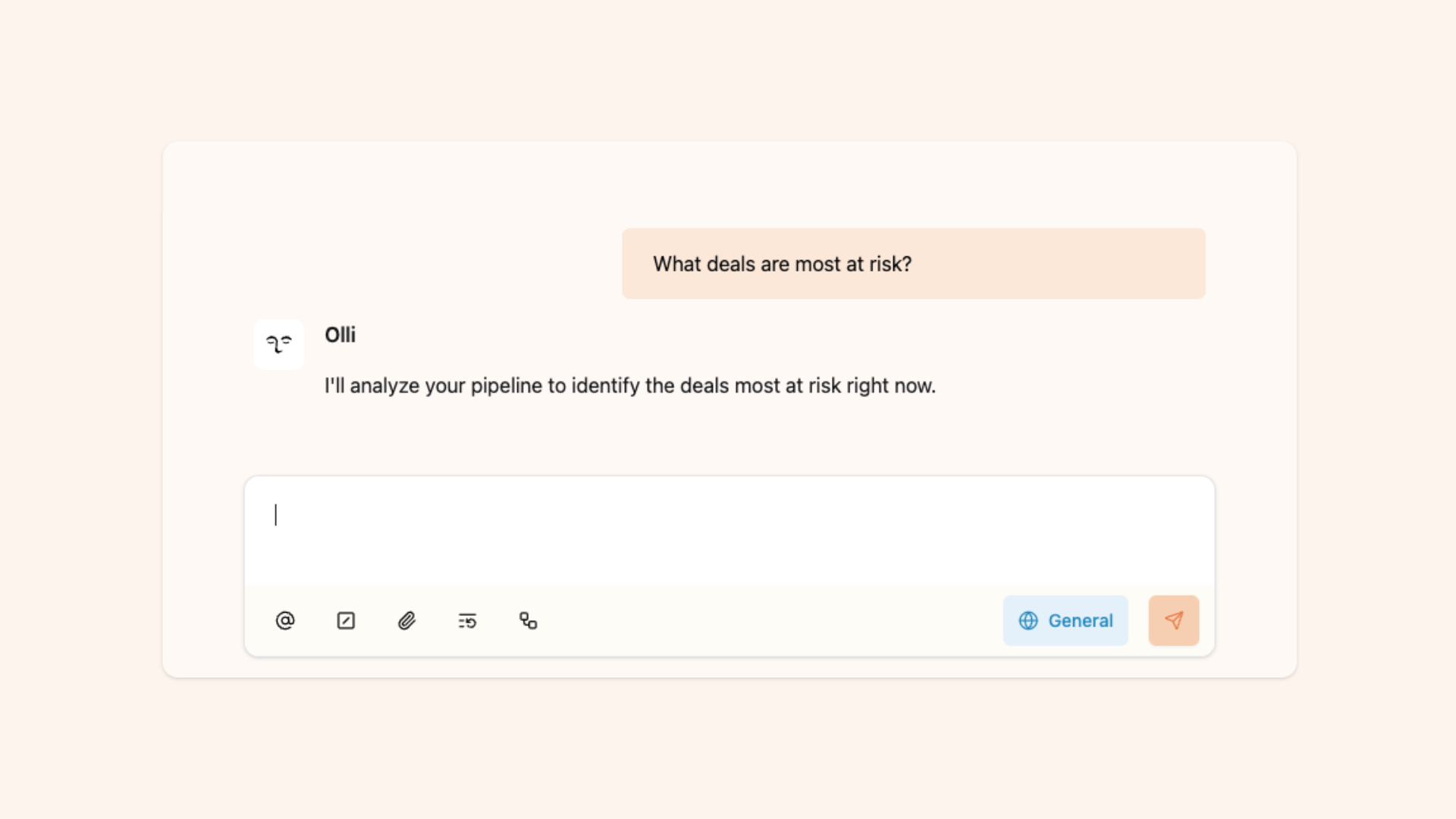
Pipeline Insights: Ask Olli About Your Whole Pipeline
One question across your entire pipeline — not one deal at a time.
Why it matters
Olli has always been great at going deep on a single deal. Now he goes wide. Sales leaders can ask the questions they actually bring to pipeline reviews — "Why are we losing in Stage 3?" "What patterns do you see across stuck deals?" "Where's risk concentrated this quarter?" — and get grounded answers in seconds.
Now Olli works across your entire pipeline at once. It pre-computes health signals, document summaries, and account relationships in the background, so when you ask a broad question, the analysis is already done. What used to be a half-day of research before a pipeline review is now a single question.
How it works
Olli can now scan your full pipeline and return grounded answers with real deal names, patterns, and data — not generic summaries.
Multi-deal analysis surfaces patterns across deals. Ask why you're losing at a specific stage or which deals have gone cold, and Olli reports back across the whole pipeline.
Activity timelines track engagement chronologically across deals, so you can spot where momentum dropped, which deals went quiet, and what happened after key meetings.
Deal health signals score every deal automatically — on-track, at-risk, or stalled — updated with each new email, meeting, or CRM change. Ask about any deal and Olli surfaces stakeholders, competitors, objections, compelling events, and buying process stage.
Document intelligence analyzes proposals, mutual action plans, and contracts on upload. Ask Olli to summarize docs tied to a deal and it pulls out pricing, commitments, conditions, contacts, and engagement data.
Account summaries give you the full relationship picture — health, revenue, deal history, key contacts, and expansion or churn signals. You can also surface health signals across multiple accounts filtered by risk category.
Pipeline patterns reveal win/loss trends, stage bottlenecks, risk concentration, and competitive positioning across your pipeline.
Getting Started
- Ask "Why are we losing deals this quarter?" or "Which deals are most at risk?"
- Ask "Which deals have had no activity in 30 days?" to surface what's gone quiet
- Ask "Summarize our relationship with [Account Name]" for a full account view
- Ask "What pricing did we offer in the Globex proposal?" to pull details from a doc
- Use it before pipeline reviews — "Where are deals getting stuck most often?"
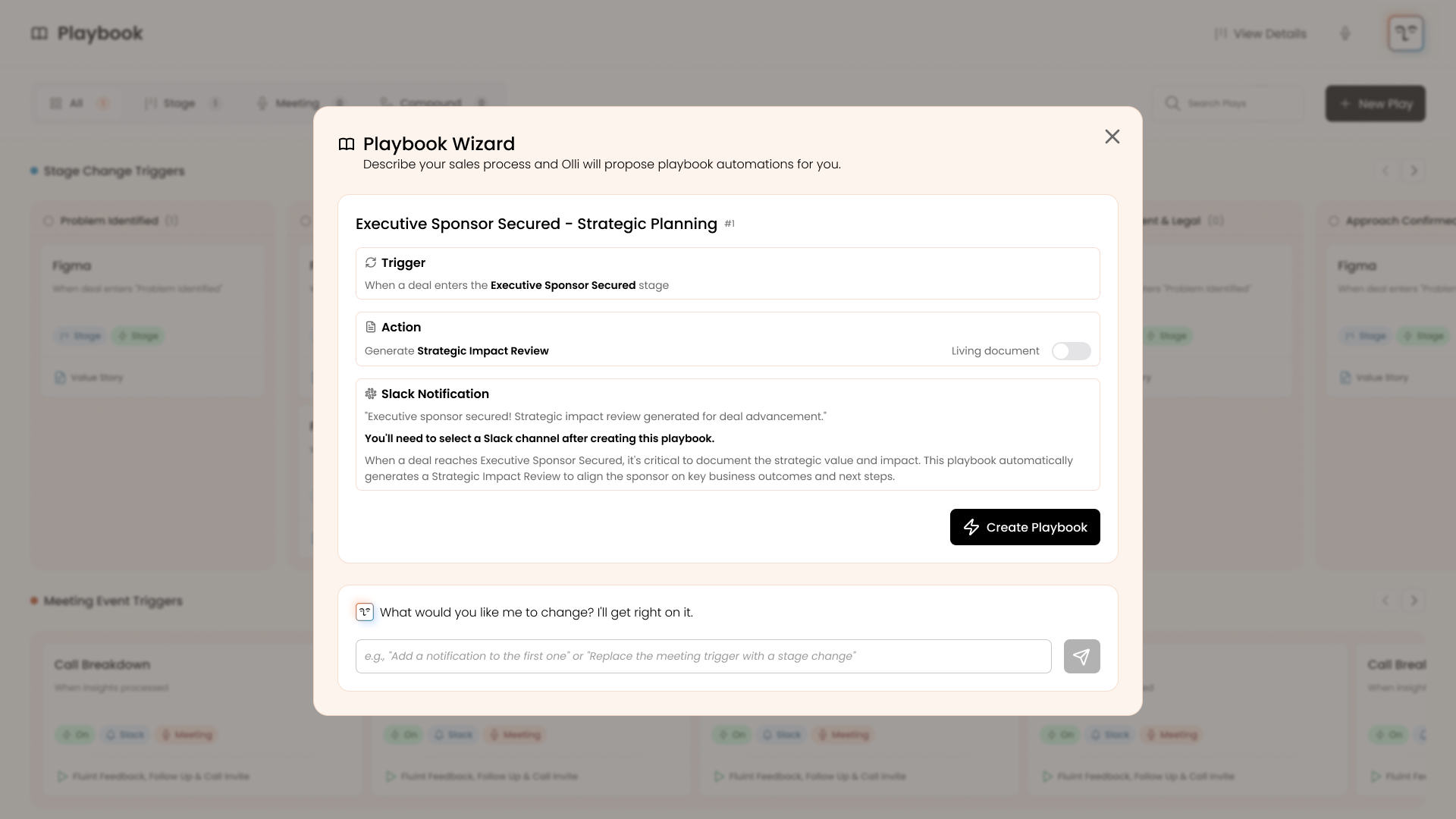
Build with the Playbooks Wizard
Describe what you want to automate and Olli builds the playbooks for you.
Why it matters
Setting up playbooks has always been the tax you pay before automation starts working. You know what you want — follow-ups after meetings, stage-based nudges, deal alerts — but translating that into configured triggers, actions, and notification rules means clicking through setup screens one at a time.
Now you just describe the outcome. Olli proposes a set of ready-to-go playbooks based on your org's actual stages, frameworks, and workflows. The gap between "I need this automated" and "it's running" collapses to a single conversation.
How it works
The Playbooks Wizard lets you describe what you want to automate in plain language or pick from suggested prompts. Olli generates 2–4 playbook proposals tailored to your org's configuration — each shown as an editable card with the trigger, actions, notification settings, and a rationale for why it's useful.
Before anything goes live, you can adjust each card inline: swap stages, frameworks, or workflows via dropdowns, toggle living documents, rename titles, and change notification channels. When a card looks right, click "Create Playbook" to activate it. Skip anything that doesn't fit, or send follow-up feedback and Olli regenerates proposals incorporating your changes.
Getting Started
You must be a Fluint admin to use the wizard when configuring playbooks for your org.
- Go to Playbooks in the sidebar
- Click "What playbooks can I help you create?" (or the wizard icon in the header if you already have playbooks)
- Describe what you want to automate, or pick a suggested prompt
- Review the proposal cards — edit triggers, actions, and notifications inline
- Click Create Playbook on each card you want to activate
- Send follow-up feedback to refine and Olli will update the proposals

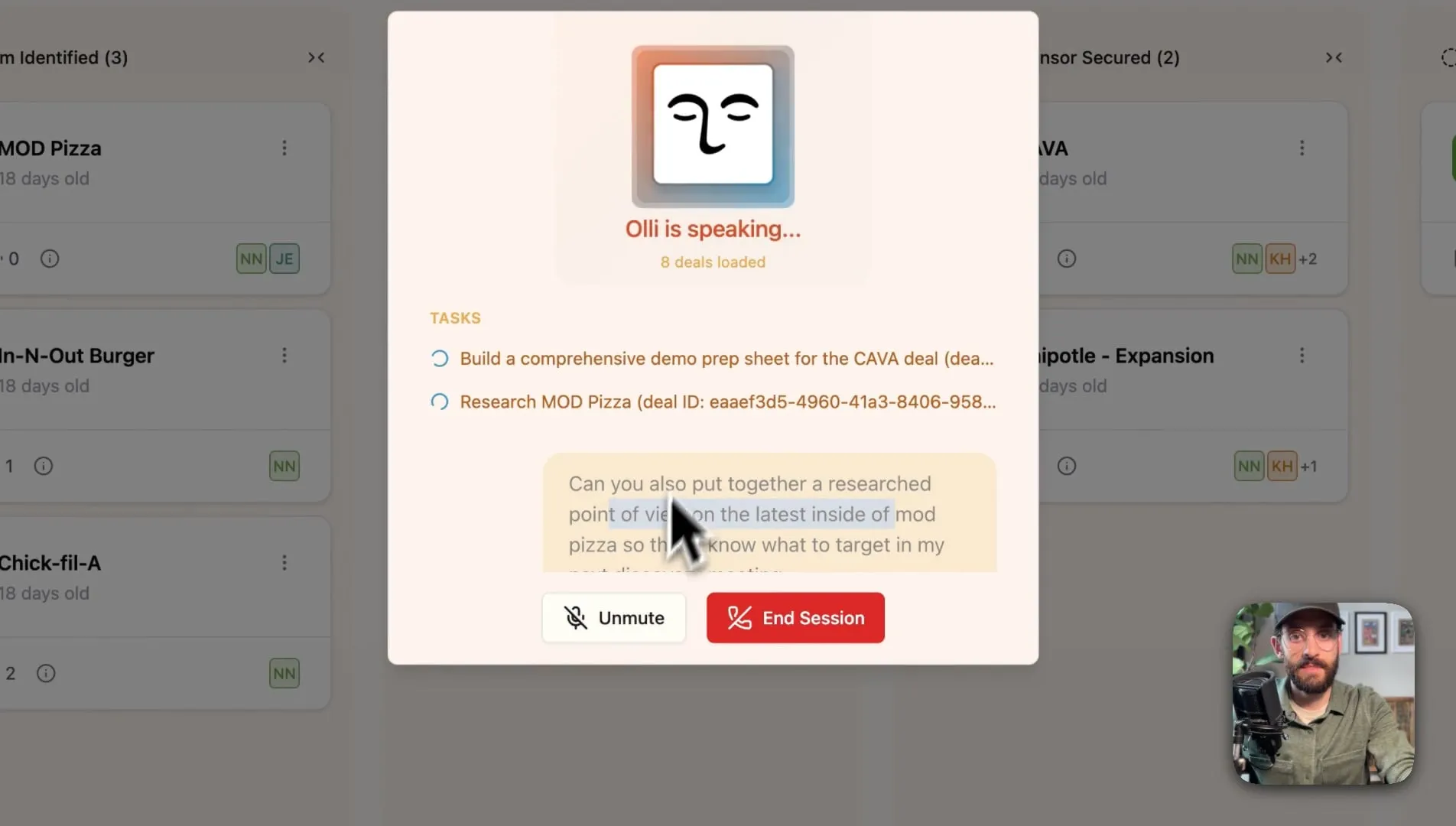
Talk to Olli—Actually Talk
Voice-powered deal execution and Flow Mode standups.
Why it matters
Your standup shouldn’t be a review session followed by a second work session. Traditionally, you look at recommendations, decide what to do, and then manually execute everything afterward. That gap slows momentum.
Now you can run your entire standup and take action at the same time — by voice. As you walk through Flow Mode recommendations, you simply say the word and Olli executes in the background. No switching tabs. No retyping prompts. No double work.
It’s a faster, more natural way to move from “what should I do today?” to “it’s already done.”
How it works
Olli now supports voice interactions anywhere the chat sidebar appears. Click the voice icon and speak naturally—whether you’re assigning tasks, asking questions, or reviewing deals.
Voice Standup brings Flow Mode into a conversational format. You can walk through recommendations out loud, approve actions by saying “yes” or “do it,” skip items, or ask why something matters. Olli responds in real time and executes approved tasks while the conversation continues.
When you trigger tasks via voice, they process in the background. A task status modal shows what’s running and what’s complete, with direct links to outputs. You can navigate away and come back later without losing progress.
If your calendar is connected, Olli incorporates meeting context into voice standups automatically. It understands who you’re meeting with, when, and what deals are involved, allowing you to ask about your day and get relevant, contextual guidance.
Getting Started
- Look for the voice icon next to Olli anywhere the chat sidebar appears
- Click the icon to open the voice task modal
- Speak your request—be as specific or casual as you like
- For Flow Mode standup, navigate to Flow Mode and start a voice standup
- Approve recommendations by saying "yes" or "do it", skip with "no" or "next"
- Check the task status modal anytime to see what's running or completed
- Click links in completed tasks to jump directly to the results
Olli Does Your CRM Homework with Custom Field Mapping
Let Olli update MEDDPICC and Business Case fields for you.
Why it matters
CRM hygiene has always depended on rep discipline. Fields go stale, MEDDPICC is half-filled, Business Case status is guesswork, and leadership ends up enforcing process through nagging or brittle automation.
Custom Field Mapping flips that dynamic. Instead of asking reps to manually update opportunity fields, Olli writes the data for them. Your CRM reflects what’s actually happening in calls and documents, not what someone remembered to type in at 5:47pm.
This turns your CRM from a reporting graveyard into a living system of record, without adding admin overhead to your team.
How it works
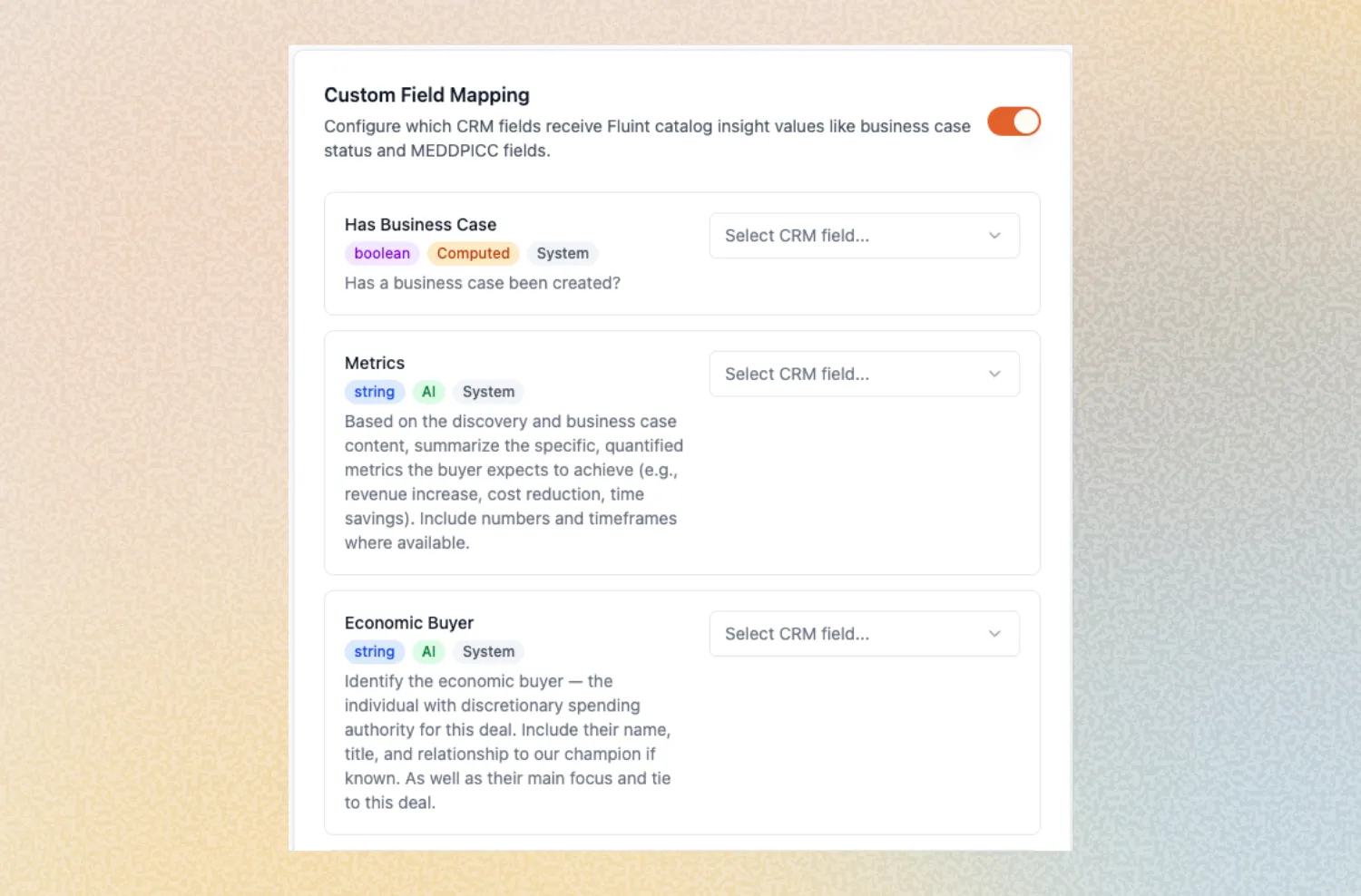
After every call or document update, Olli analyzes the deal and extracts structured insights. Those insights are automatically written into the CRM fields you choose inside Salesforce or HubSpot.
Business Case tracking becomes automatic. When Olli detects that a Business Case exists for a deal, it updates the mapped CRM field. This makes it possible to enforce real quality gates, like requiring a Business Case before a deal advances, without building complex automation or relying on manual policing.
Olli also extracts full MEDDPICC coverage from calls and documents and syncs each component to its corresponding CRM field. Instead of asking reps to “fill in MEDDPICC,” you get structured data based on actual deal conversations.
Beyond the built-in fields, you can create your own custom fields in Fluint. Define what matters to your process, map it to any existing CRM field using a simple dropdown, and Olli will keep it updated automatically.
A dedicated Custom Field Mapping section in Integration Settings shows all available Fluint fields alongside your CRM’s custom fields. You simply select what maps to what, save, and Olli handles the syncing from that point forward.
Getting Started
- Go to Settings → Integrations in Fluint.
- Scroll to the Custom Field Mapping section (you'll need an active Salesforce or HubSpot integration to see this).
- Toggle the feature on.
- For each Fluint field (Business Case, MEDDPICC components, or any custom fields you've created), use the dropdown to select which CRM field it should sync to.
- Click Save — Olli will begin syncing data to your CRM as deals are updated going forward.
- To add custom fields beyond the defaults, use the + Custom Fields button at the bottom to define new fields with a label, description, and value type.
Self-serve Integrations Setup
Connect your CRM and sales tools in minutes without implementation calls.
Why it matters
Integration setup has traditionally been a bottleneck—requiring support tickets, implementation calls, and days of back-and-forth just to get your tools connected. For revenue teams evaluating new software, this friction delays time-to-value and creates adoption risk. With self-serve setup, you can connect Salesforce, HubSpot, Gong, Salesloft, and Clari the moment you're ready, putting control back in your hands.
How it works
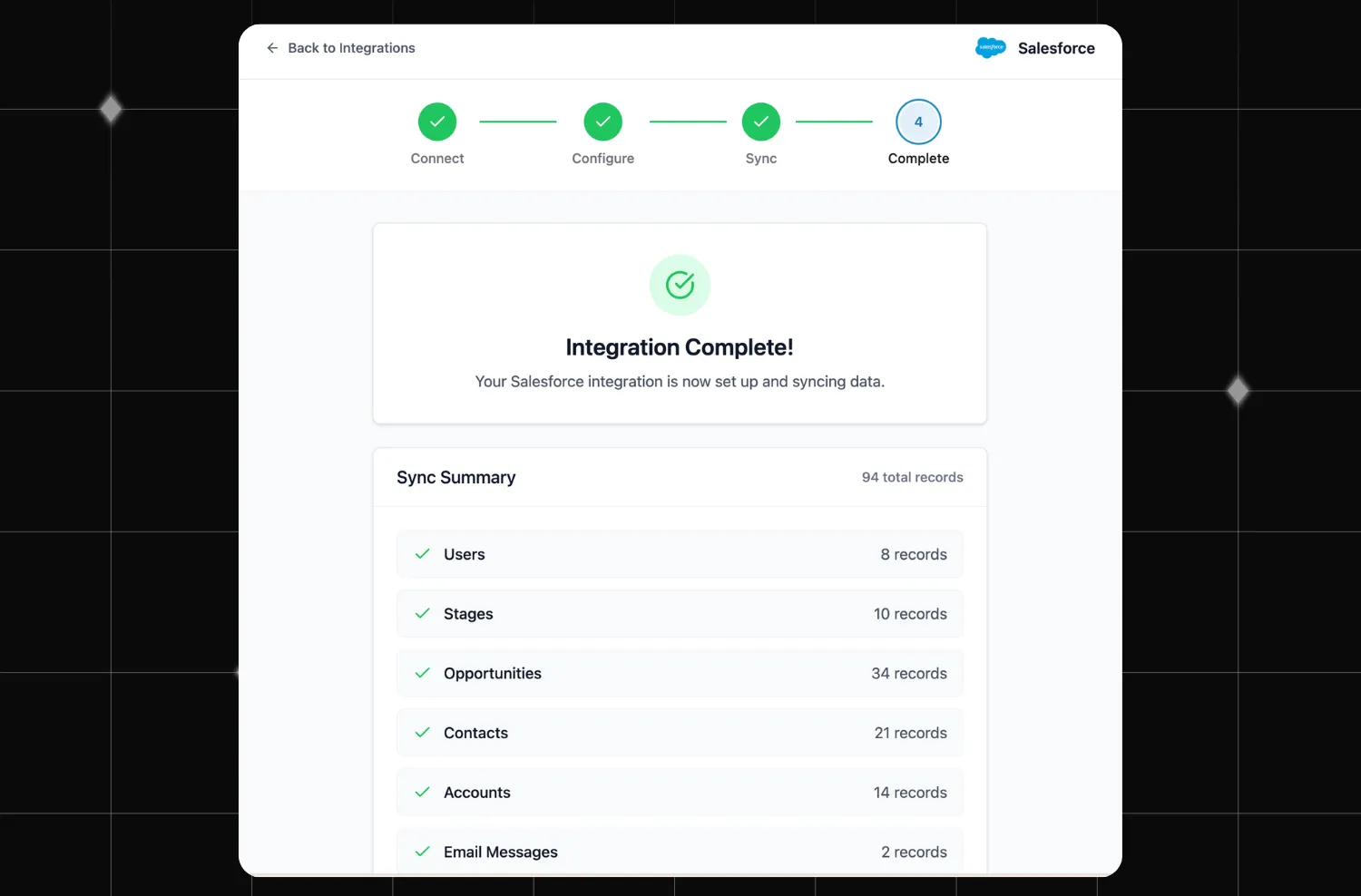
Fluint now provides a step-by-step setup wizard that guides you through connecting each integration with clear instructions at every stage—no more confusion about which settings to configure or what order to follow.
The platform handles data synchronization intelligently, syncing users first, then stages, then opportunities or deals automatically. This ensures your data arrives in the correct sequence without manual intervention.
During setup, you can configure filters to control which deals sync and specify record types that match your team's workflow. The entire process takes minutes and runs completely self-service—no implementation calls required.
Getting Started
You must be a Fluint Integrations admin to set-up these integrations for your org.
- Go to the Integrations page in your workspace
- Select the integration you want (Salesforce, HubSpot, Gong, Salesloft, or Clari)
- Follow the wizard through authentication and settings
- Configure your filters to match your team's needs
- Let the sync run—it handles everything in the right order

Let’s see if there’s a good fit
We’ll look at how other GTM teams are already: