The latest improvements & new capabilities in Fluint.
Product Updates

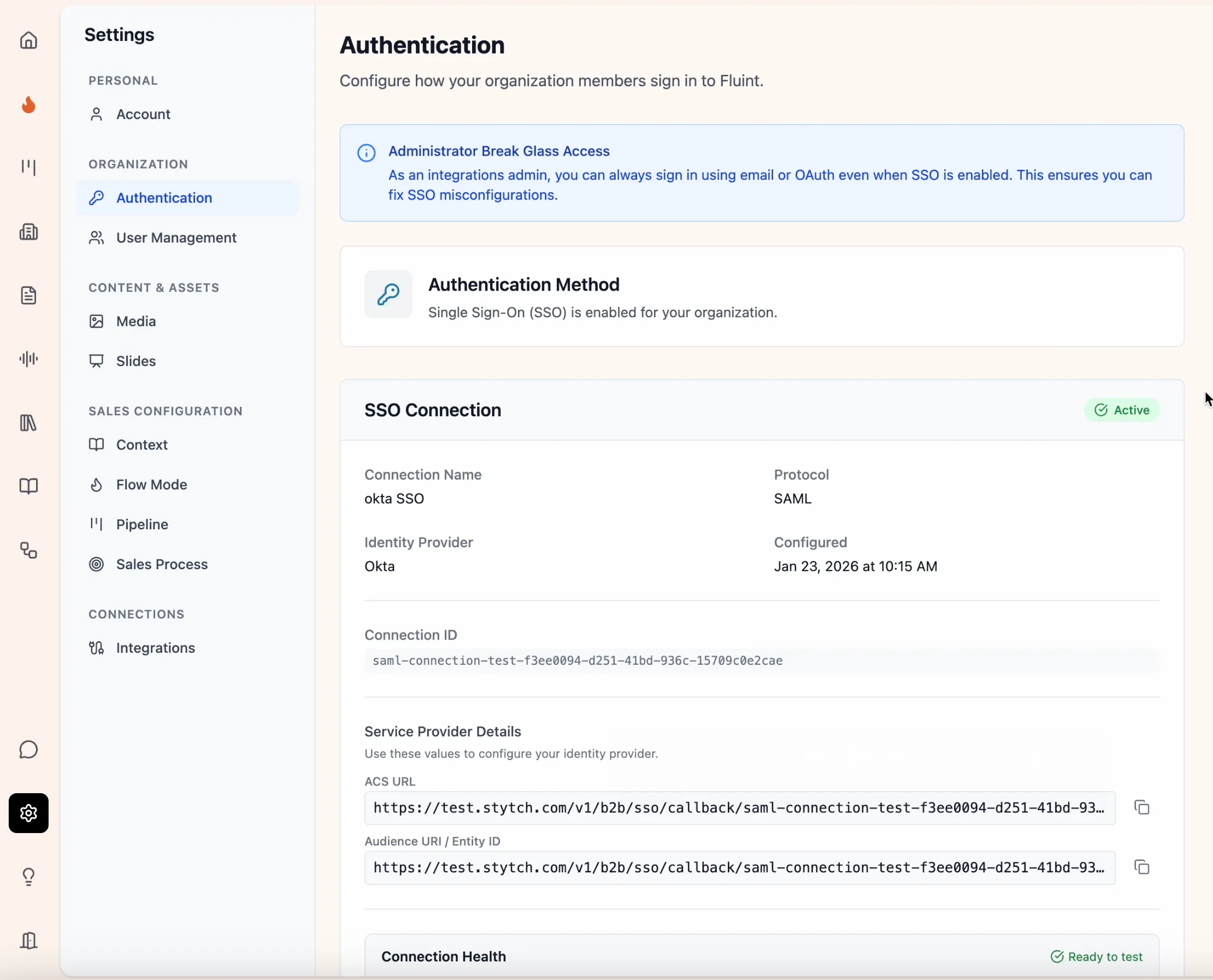

SSO & SCIM for Enterprise Teams
Single sign-on and automated user provisioning for enterprise teams.
Why it matters
Enterprise teams expect identity to “just work.” When login flows are clunky or user access is managed manually, it creates friction for employees and unnecessary overhead for admins. Security, compliance, and scale all suffer when identity isn’t centralized.
SSO and SCIM bring Fluint into your existing identity ecosystem. Your team can log in using the credentials they already trust, and admins can manage access automatically through their identity provider. This reduces onboarding friction, improves security posture, and ensures your Fluint workspace stays accurate as your org changes.
How it works
Fluint now supports SSO using SAML or OIDC, allowing users to authenticate through providers like Okta, Azure AD, or any compatible identity provider. Users simply enter their email and are routed automatically to the correct login flow, whether SSO is enabled or not.
Admins can configure SSO directly in Fluint settings without support tickets or custom setup. Once configured, Fluint generates a custom login URL that routes users straight to your identity provider and supports both direct login and IdP-initiated login from tools like Okta or Azure.
SCIM adds automated user provisioning on top of SSO. When connected, Fluint stays in sync with your identity provider automatically. New users are added, removed users lose access, and profile updates flow through without manual intervention. This keeps access clean and up to date as your organization evolves.
Getting Started
Setting up SSO
You must be a Fluint Integrations admin to set up SSO for your org.
- Go to Settings → Authentication in your Fluint workspace
- Select SSO and choose SAML or OIDC
- Add your identity provider details
- Test the connection to make sure it works
- Enable SSO for your organization
- Share your custom login URL with your team
Setting up SCIM (Optional)
SCIM automates user management and works alongside SSO. You must be a Fluint Integrations admin to configure SCIM.
- Go to Settings → Authentication → SCIM
- Generate your SCIM credentials (base URL and bearer token)
- Add these credentials to your identity provider's SCIM configuration
- Test the connection
- Enable SCIM provisioning
Once enabled, your identity provider will automatically create, update, and remove Fluint users based on changes in your IdP.
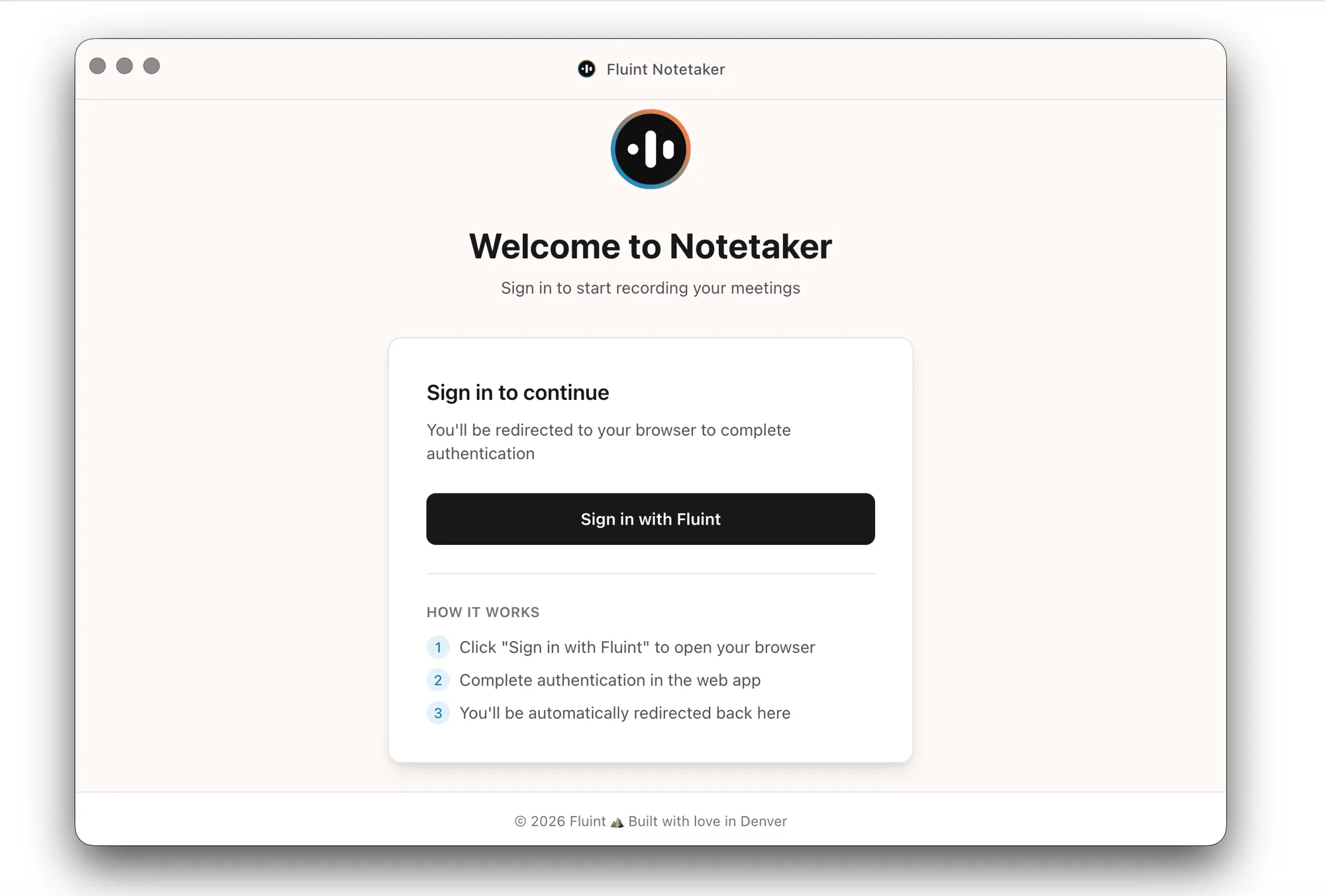
Desktop Notetaker for Windows
Record meetings locally on Windows with Desktop Notetaker.
Why it matters
Not every team works on macOS, and recording meetings shouldn’t depend on your operating system. Windows users need the same level of control, privacy, and reliability when capturing deal conversations.
With Desktop Notetaker now available for Windows, teams can record meetings directly from their device without bots, calendar dependencies, or workflow hacks. This brings a consistent, native recording experience to more users and makes it easier to adopt Desktop Notetaker across the entire organization.
How it works
Desktop Notetaker for Windows runs as a native desktop application that records audio directly from your computer. There’s no need for meeting bots to join calls, which keeps meetings clean and avoids duplicate note-takers.
You can mark recordings as private so they’re only visible to you and excluded from shared AI context, discovery gaps, or team-wide features. Meetings can be linked to deals at any point during recording, preventing unmatched or lost recordings.
The app automatically detects when you join Zoom, Microsoft Teams, or Google Meet and prompts you to start recording with a single click. You can also record meetings without connecting your calendar by simply opening the app and hitting record.
Getting Started
- Download the Desktop Notetaker for Mac or Windows from the Individual Integrations page under Settings
- Complete the quick setup wizard to grant permissions
- Sign in with your existing Fluint account
- You’re ready to record
The app lives in your menu bar (Mac) or system tray (Windows) for quick access, and you’ll receive notifications when meetings are detected.
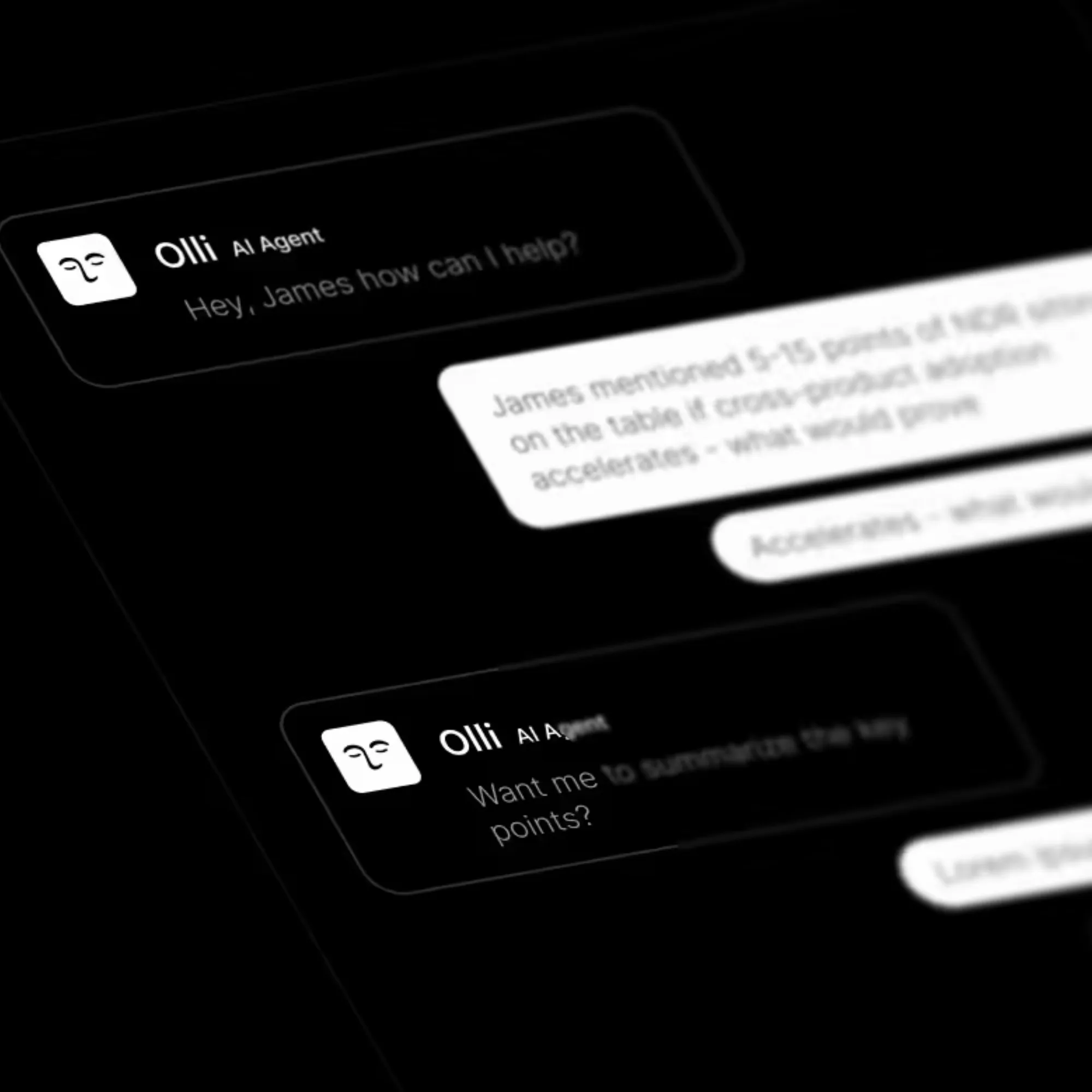
Extended Conversations with Olli
Work through complex deals in one continuous conversation, without hitting context limits.
Why it matters
Sales work doesn’t happen in short bursts. Deals sprawl across calls, docs, emails, and time. Hitting conversation limits mid-analysis breaks momentum and forces reps to start over or lose context.
With extended conversations, Olli can now stay with you longer—across deals, documents, and deep analysis—without cutting you off. That means fewer resets, better comparisons, and more time spent actually moving deals forward instead of managing tools.
You can think through complex situations in one place, the way you would with a real teammate who remembers what you talked about five minutes ago.
How it works
We rebuilt Olli’s memory management from the ground up so conversations scale with the work you’re doing:
- Cross-deal conversations
Compare Deal X to Deal Y in a single thread. Olli can now reason across multiple deals, documents, or transcripts without running out of context. - Smart compression, full fidelity
Olli intelligently compresses large results behind the scenes, keeping everything accessible when needed. You won’t notice the system working—you’ll just notice the conversation keeps going. - Much longer chats
Dive deep into complex topics without hitting context limits. Olli now manages what it remembers so you can stay focused instead of restarting. - Works everywhere
The same extended conversations work in Fluint and in Slack. Same memory, same results, no matter where you’re chatting.
Getting started
There’s nothing to set up. Just start chatting. You’ll automatically get longer conversations, fewer interruptions, and the ability to work across multiple deals or documents at once.
Olli’s got more stamina now—use it.
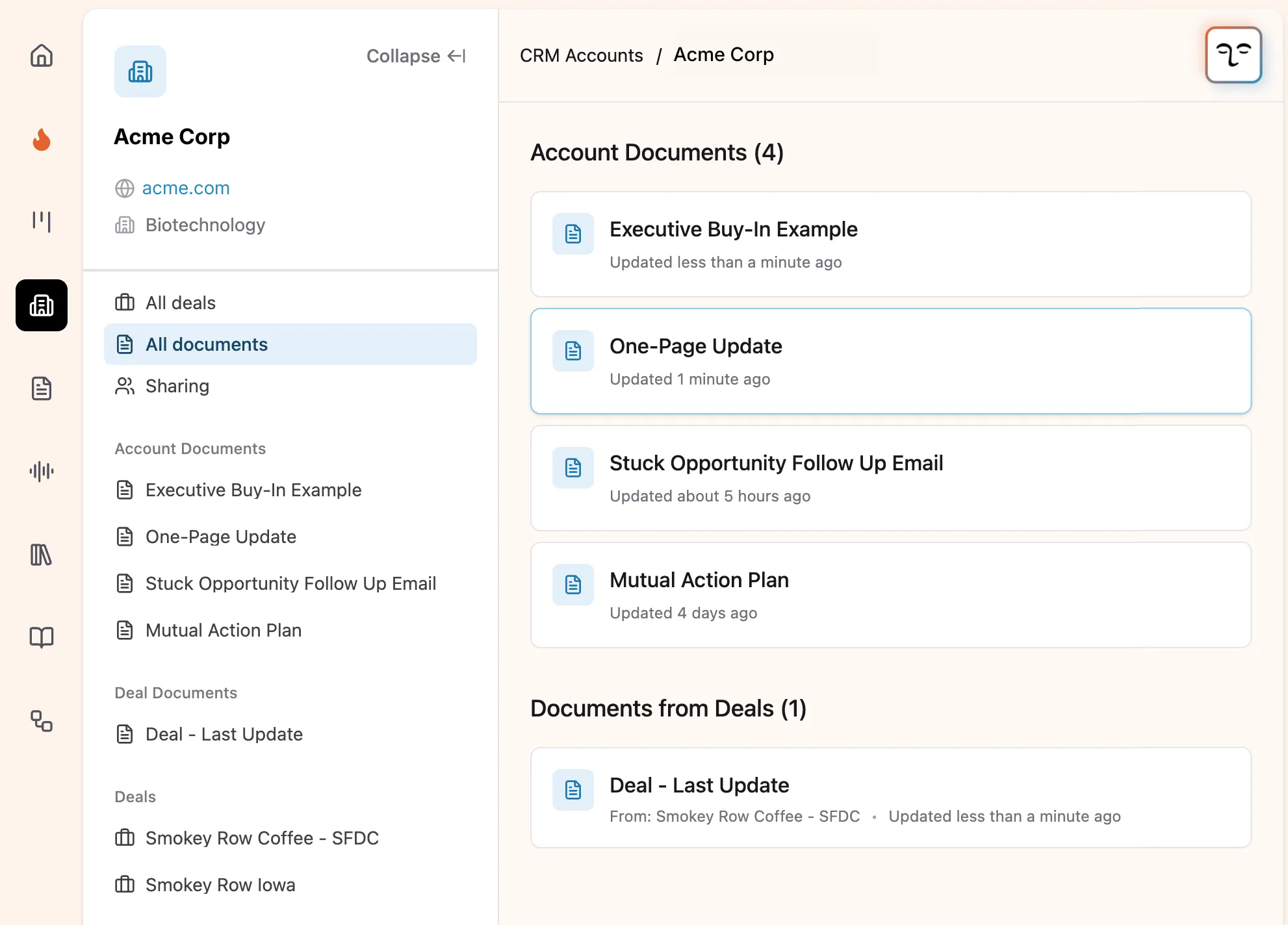
CRM Account View
Group deals by account and let Olli help you think at the relationship level.
Why it matters
Deals don’t live in isolation. Real revenue comes from managing relationships across multiple opportunities, stakeholders, and conversations. When everything is organized only at the deal level, it’s easy to miss risk, lose context, or optimize one deal at the expense of the bigger account.
The CRM Account View gives you a full picture of each account in one place. Instead of juggling scattered deals, you can see how opportunities connect, understand account-level risk, and think strategically about the entire relationship. Olli can now help you zoom out, spot patterns, and plan at the account level instead of one deal at a time.
How it works
The new CRM Account View groups all related opportunities under a single account, so you can see every active deal, document, and insight tied to that customer in one place.
You can reference any account directly in Olli by typing @ followed by the account name. From there, you can draft account plans, analyze risks across deals, or ask questions about the overall relationship instead of a single opportunity.
You can also create documents at the account level, not just for individual deals. This makes it easier to build account plans, business cases, or executive summaries that span multiple opportunities and stay aligned as deals progress.
Getting started
- Navigate to CRM Accounts from the left-hand navigation. Browse accounts and click into one to see all linked deals and documents.
- To work with an account in Olli, type @ and select the account name to ask questions or generate account-level insights.
- You can create account-level documents either from the account detail page or directly through Olli.
*Please note that your CRM integration must be set up by a Fluint workspace admin.
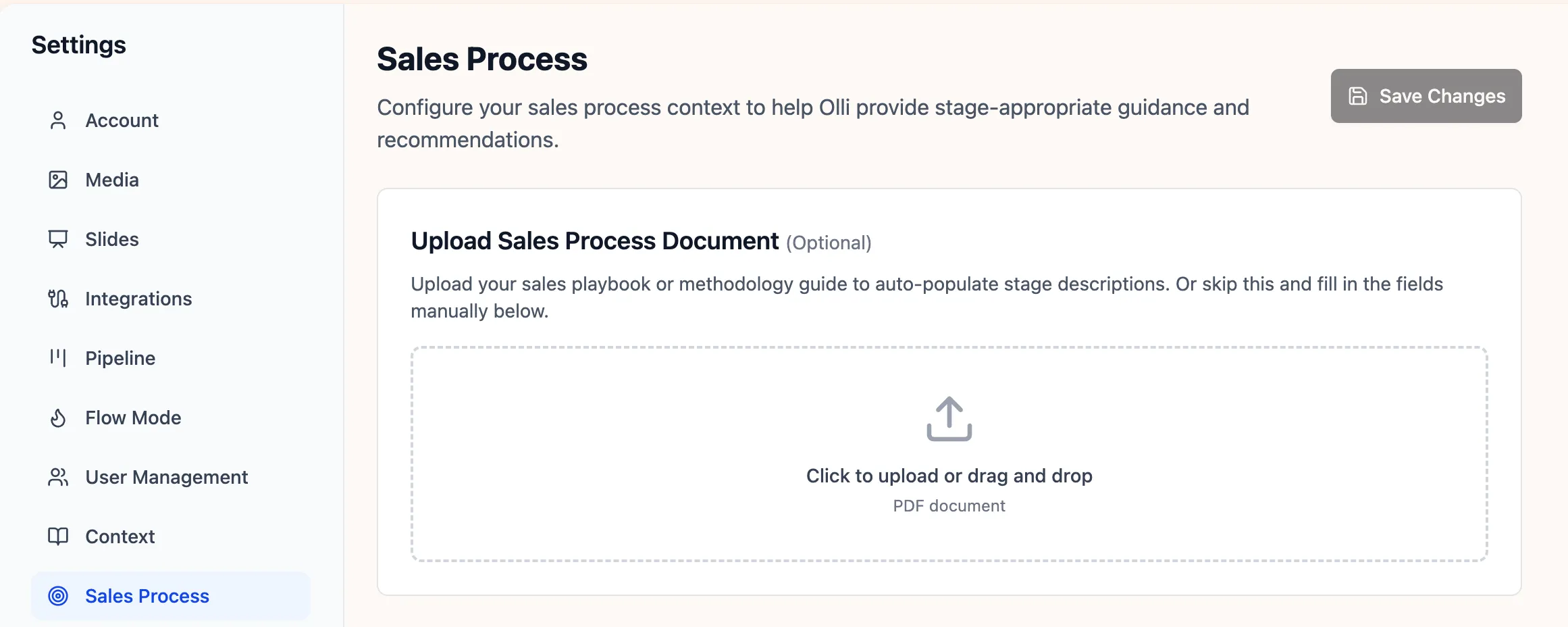
Olli Knows Your Exit Criteria
Olli uses your sales process to guide deals forward, stage by stage.
Why it matters
Most sales teams invest real time defining their sales methodology, but that process rarely shows up where it actually matters: inside live deals. Reps forget exit criteria, managers repeat themselves, and coaching turns into generic advice instead of stage-specific guidance.
By teaching Olli your sales framework, you turn your methodology into something that actively guides every deal. Reps get clear direction on what needs to happen next, managers get consistency across the team, and your process stops living in a PDF no one opens.
This keeps deals moving forward and reduces the gap between how you want deals run and how they’re actually executed.
How it works
You can upload your sales methodology directly into Fluint, and Olli automatically maps it to your pipeline stages. Once it’s uploaded, your framework becomes the backbone of Olli’s coaching.
Olli always knows what stage a deal is in and provides guidance tied to that stage’s exit criteria. Instead of generic tips, reps get specific direction on what needs to happen to advance the deal.
Your internal process stays internal. The uploaded methodology teaches Olli how your team executes deals, not what reps say to buyers, so nothing bleeds into customer-facing messaging.
Getting Started
The settings page is only available to a Fluint workspace admin. They can upload or edit the sales process details for their entire org.
- Go to Settings → Sales Process
- Upload your sales methodology document (PDF only)
- Review how Olli mapped your stages
- Adjust descriptions or exit criteria if needed
- Save your changes
- Olli starts giving stage-appropriate guidance on the next call
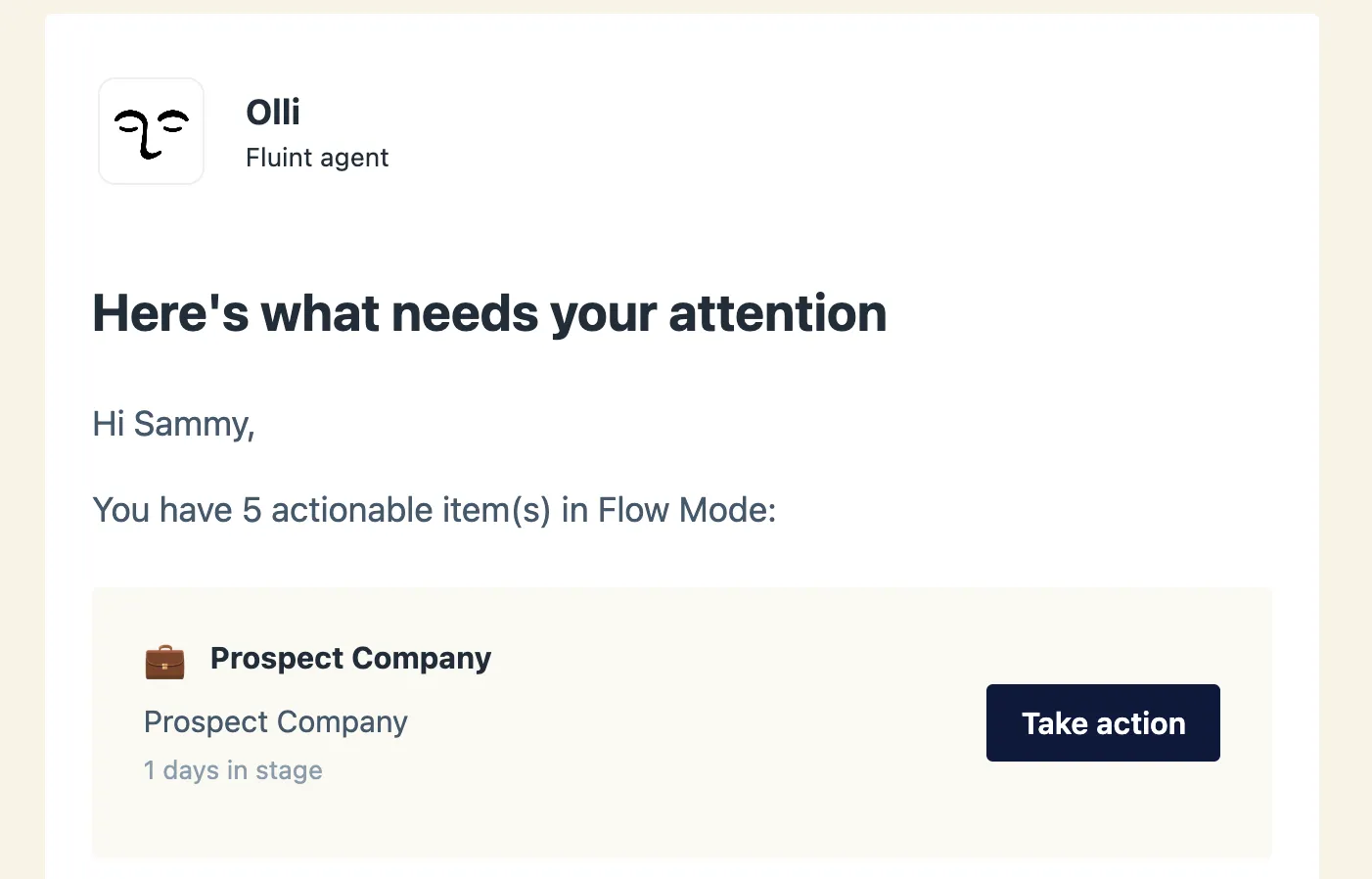
Flow Mode Email Notifications
Get proactive deal recommendations delivered straight to your inbox.
Why it matters
Reps don’t need more dashboards to check. They need the right nudge at the right moment. Important prep gets missed not because people don’t care, but because context is scattered across calendars, deals, and tools.
Flow Mode email notifications bring Olli to you. Instead of pulling insights manually, you get timely recommendations based on your actual deals and upcoming meetings. The result is better preparation, fewer missed follow-ups, and more consistent execution without adding work to your day.
How it works
Olli monitors your calendar and deal activity to understand what’s coming up and what needs attention. Based on that context, it sends proactive recommendations instead of waiting for you to ask.
You’ll receive a daily digest email with prioritized suggestions tied to meetings happening in the next 24 hours. Each recommendation is grounded in where the deal sits in the cycle, pulling in relevant context and decision-maker details automatically.
Every recommendation links directly into Flow Mode. One click takes you straight to the right prompt, already running, so you can act immediately instead of re-orienting.
Olli also keeps a history of past recommendations, making it easy to review what’s been suggested over time and track progress across deals.
Getting started
- Navigate to Flow Mode settings
- Toggle on "Enable Notifications"
- While you're in settings, switch to the Integrations -> Individual Integrations page to connect your calendar
- You'll start receiving digest emails when you have upcoming meetings or new deal activity
- Click recommendations in your email to jump straight into Flow Mode

Let’s see if there’s a good fit
We’ll look at how other GTM teams are already: