The latest improvements & new capabilities in Fluint.
Product Updates

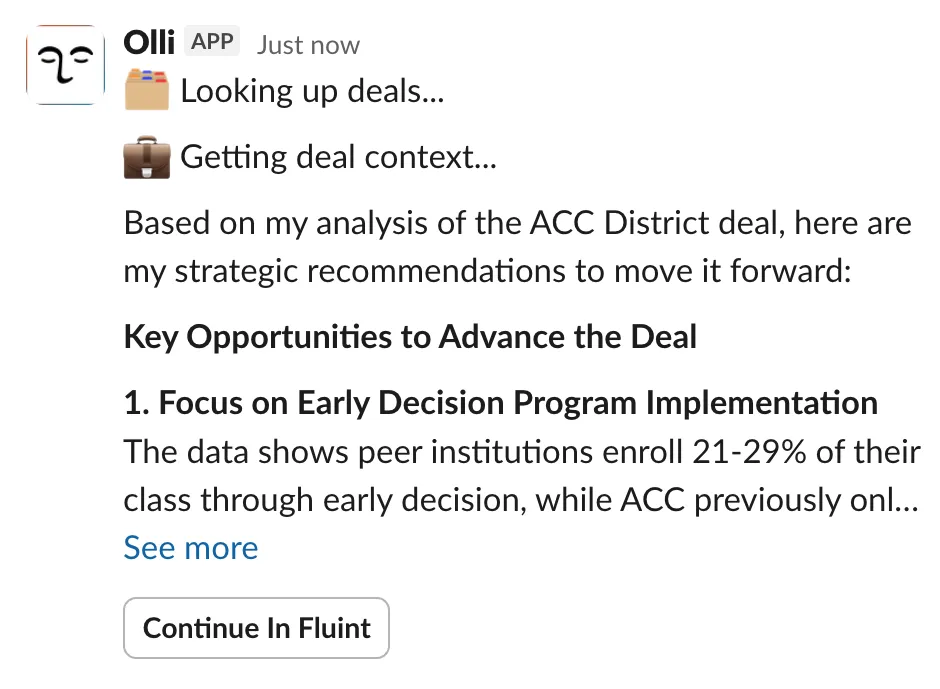

Olli Slack Integration
Ask Olli questions and get deal insights without leaving Slack.
Why it matters
Sales conversations don’t just live in CRM notes or meeting recaps. They happen in Slack, in threads, in quick questions between calls, and in moments where context matters but time is short.
The Olli Slack Integration brings deal intelligence directly into those conversations. Instead of switching tools or breaking focus, your team can get answers, insights, and next steps right where they’re already working. This keeps momentum high and makes it easier for reps to act in the moment, not after the fact.
How it works
Olli lives directly inside Slack and can be summoned anywhere with a simple @mention. Whether you’re in a channel, a thread, or a direct message, Olli responds inline so the conversation keeps flowing.
Olli is thread-aware, meaning he understands the context of the discussion and remembers what deal or details you’re talking about. You can ask follow-up questions naturally without re-explaining everything.
You can share files directly with Olli in Slack or reference files already shared in the thread. Olli can analyze documents and images in place, making it easy to work through materials without leaving the conversation.
Olli also includes interactive buttons in responses for common actions, like jumping to deals or opening documents with a single click. For quick commands, slash commands let you explore what Olli can do, check your account status, or ask a question instantly.
Getting Started
A Fluint workspace admin must install the Olli app to your Slack workspace (*Only available for team license plans):
- Go to Settings → Integrations in Fluint
- Find the Slack integration and click Install
- Authorize the Olli app for your Slack workspace
- Once installed, all workspace members can link their accounts
- That's it — happy chatting!
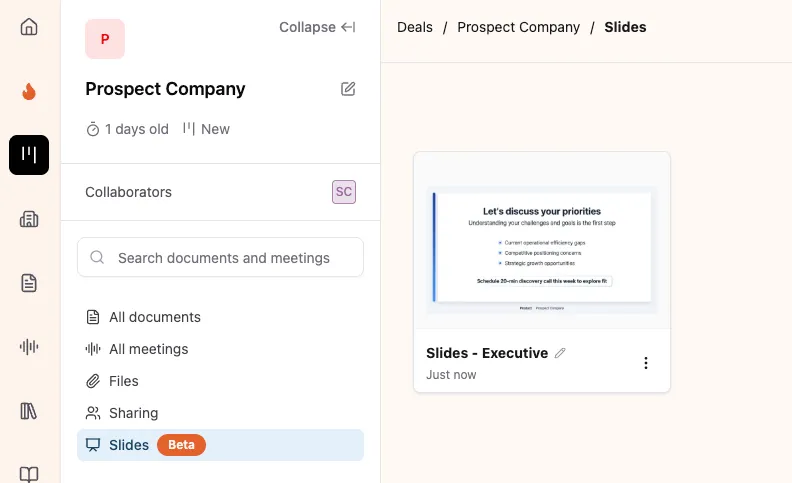
Slides (Beta)
Create polished, customized slides from deal context in minutes.
Why it matters
Creating slides is one of the most time-consuming parts of deal work. Reps end up rebuilding decks from scratch, copying old slides, or rushing through formatting instead of focusing on the story they need to tell.
Slides lets you generate polished, deal-specific presentations directly inside Fluint. Because Olli pulls from real deal context, the output is tailored to your audience and situation, not a generic template. That means faster prep, more relevant messaging, and less time spent fiddling with slides right before a meeting.
How it works
Slides uses your deal context to generate presentations that match the stage, audience, and goals of the deal. You can choose how many slides you want and whether you’re presenting to an executive or a champion, and Olli builds the content accordingly.
You can upload your organization’s presentation templates so slides are generated in your brand from the start. Backgrounds, layouts, and brand colors are automatically applied, eliminating manual formatting.
Before sharing, you can review and edit the content in a built-in text editor. Make quick adjustments, add emphasis, or approve the slides as-is.
If you want more control, you can give Olli custom instructions to shape the output. This is useful for industry-specific language, strategic emphasis, or tailoring the narrative for a particular audience.
Slides are displayed in an integrated viewer that supports page navigation, fullscreen mode, and seamless use within your deal workspace.
Getting Started
- Navigate to any deal
- Click "Slides" in the sidebar
- Click "Generate Slides"
- Choose your slide count and target persona
- Add any custom instructions (optional)
- Generate and review!
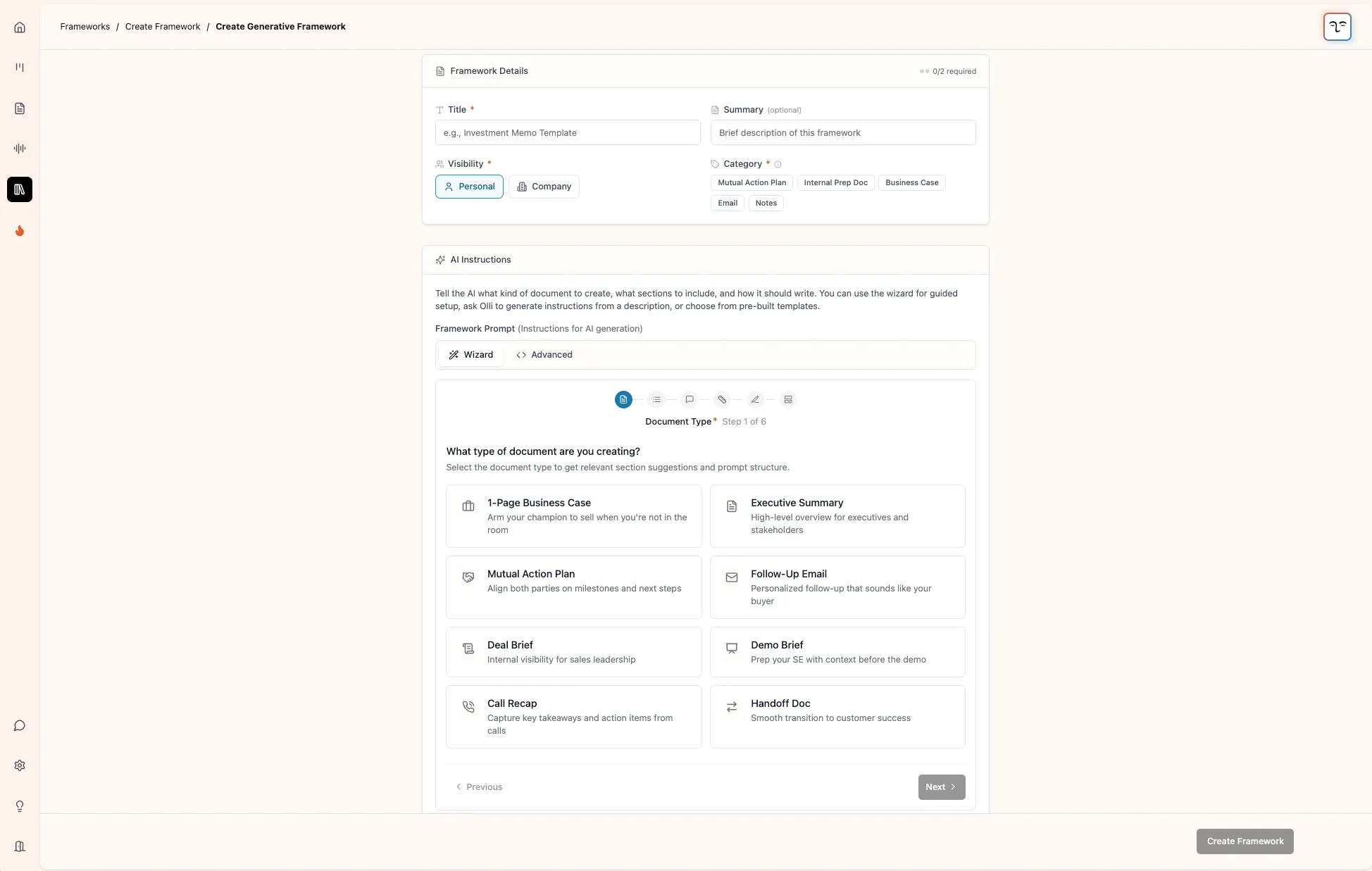
Custom Framework Wizard
A faster, guided way to create custom frameworks in Fluint.
Why it matters
Custom frameworks are powerful, but creating them has historically been intimidating. Starting from a blank editor forces teams to guess at structure, tone, and output before they even know what they want to generate. That friction slows adoption and keeps good ideas from ever becoming usable frameworks.
The Custom Framework Wizard removes that barrier. Instead of wrestling with an empty page, you’re guided step by step through the decisions that actually matter. This makes it faster to create consistent, reusable frameworks and easier for teams to standardize how documents get generated across deals.
How it works
The new wizard walks you through framework creation in a clear, six-step flow. You define the document type, sections, tone, length, custom instructions, and output structure in sequence, so nothing is left to guesswork.
You can start from pre-built templates for common use cases like business cases, executive summaries, MAPs, and follow-up emails, then customize from there. Sections can be enabled, disabled, reordered with drag-and-drop, or replaced with your own custom sections.
As you build, you can preview the output structure visually, so you know exactly what the final document will look like before you generate it.
Creating a framework from an existing document is also streamlined. The entire flow now happens in an inline modal instead of redirecting you away. You can create the framework, edit it, and immediately use it on another deal with the framework already selected. In most cases, your new framework is ready to use in seconds.
Getting Started
- Go to Framework Library → + Custom Framework
- Choose Create Generative Framework
- Use the Wizard tab for guided setup or Advanced tab for raw editing
Note: Only Admins can create org-level frameworks.
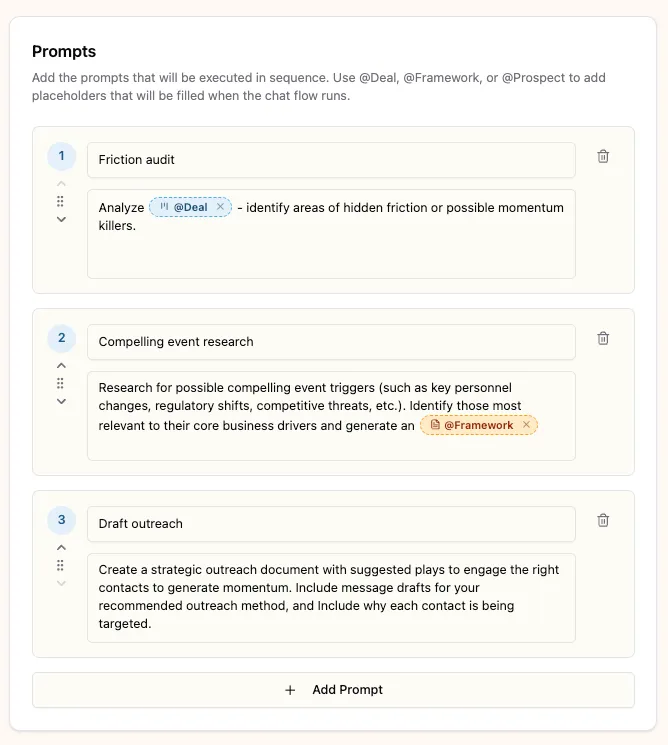
Chat Flows
Save and run multi-step Olli workflows with a single slash command.
Why it matters
Some of the most valuable work with Olli happens across multiple steps. Reps ask a series of questions, generate documents, refine outputs, and repeat the same patterns deal after deal. Until now, that knowledge lived in individual chats and had to be rebuilt every time.
Chat Flows let you turn those repeatable patterns into reusable workflows. Instead of retyping prompts or recreating sequences from memory, you can run complex, multi-step workflows with a single command. This saves time, reduces inconsistency, and helps teams scale what actually works.
How it works
Chat Flows allow you to save a sequence of prompts and run them on demand. You can launch any flow instantly by typing a slash command in chat, making workflows easy to discover and execute.
Prompts support dynamic placeholders like deals, frameworks, prospects, or meetings. When you run a flow, you choose the specific resources you want to use. This makes the same workflow reusable across different deals while still staying context-aware. You can even generate multiple documents in a single flow by referencing more than one framework.
Chat Flows can automatically save generated documents to a deal, keeping outputs organized without extra steps. If a flow needs a deal and one isn’t specified, you’ll be prompted to select it at runtime.
You can also save a great chat as a reusable flow directly from the conversation. Visibility controls let you keep flows private or share them with your organization, with admins able to manage shared flows while private ones remain owner-only.
Getting Started
- Click Chat Flows in the sidebar to create a new Chat Flow
- Type / in any chat to run a chat flow (or click the / button in the chat toolbar)
- Or save an existing conversation as a chat flow from the chat toolbar
Enhanced Salesforce Email Sync
Capture more Salesforce emails for better deal context.
Why it matters
Email is where a huge amount of deal context lives. When emails don’t sync cleanly, important conversations go missing, timelines get fragmented, and coaching loses accuracy. Teams end up working with an incomplete picture of what’s actually happening inside a deal.
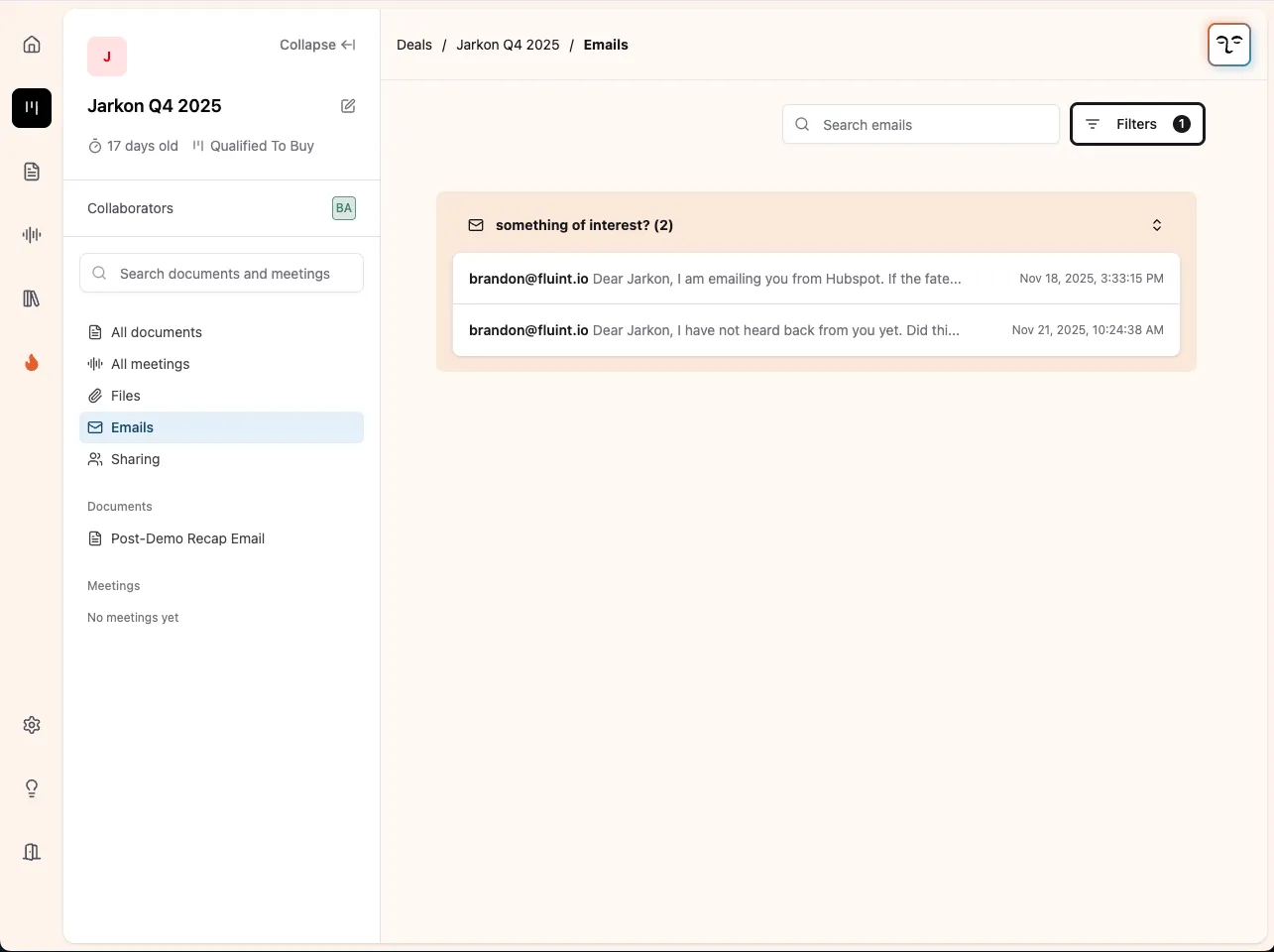
The enhanced Salesforce email sync captures more of that context automatically. By pulling emails from additional Salesforce objects, Fluint can reflect real deal activity more reliably, even in orgs with different email logging setups. That means better visibility, stronger insights, and fewer gaps in the story of each deal.
How it works
Fluint now syncs emails from both the Email and Task objects in Salesforce. This ensures emails are captured whether your org uses Enhanced Email or logs emails as activities, reducing the chance that important conversations are missed.
To support this, we’ve also expanded the set of Salesforce objects we sync behind the scenes, including Contacts, Accounts, Tasks, and Events. These additional objects provide richer context for deals today and lay the groundwork for deeper Salesforce-powered features in the future.
Introducing Desktop Notetaker
Introducing new features to enhance user experience.
Why it matters
Meeting recordings are critical, but traditional meeting bots create friction. They clutter calls, raise privacy concerns, and don’t always fit how teams actually work, especially in sensitive or internal conversations.
Desktop Notetaker gives you full control over how meetings are recorded and managed. By recording directly from your device, you can capture conversations cleanly without inviting bots or relying on calendar integrations. This makes recording simpler, more private, and easier to use across all types of meetings.
How it works
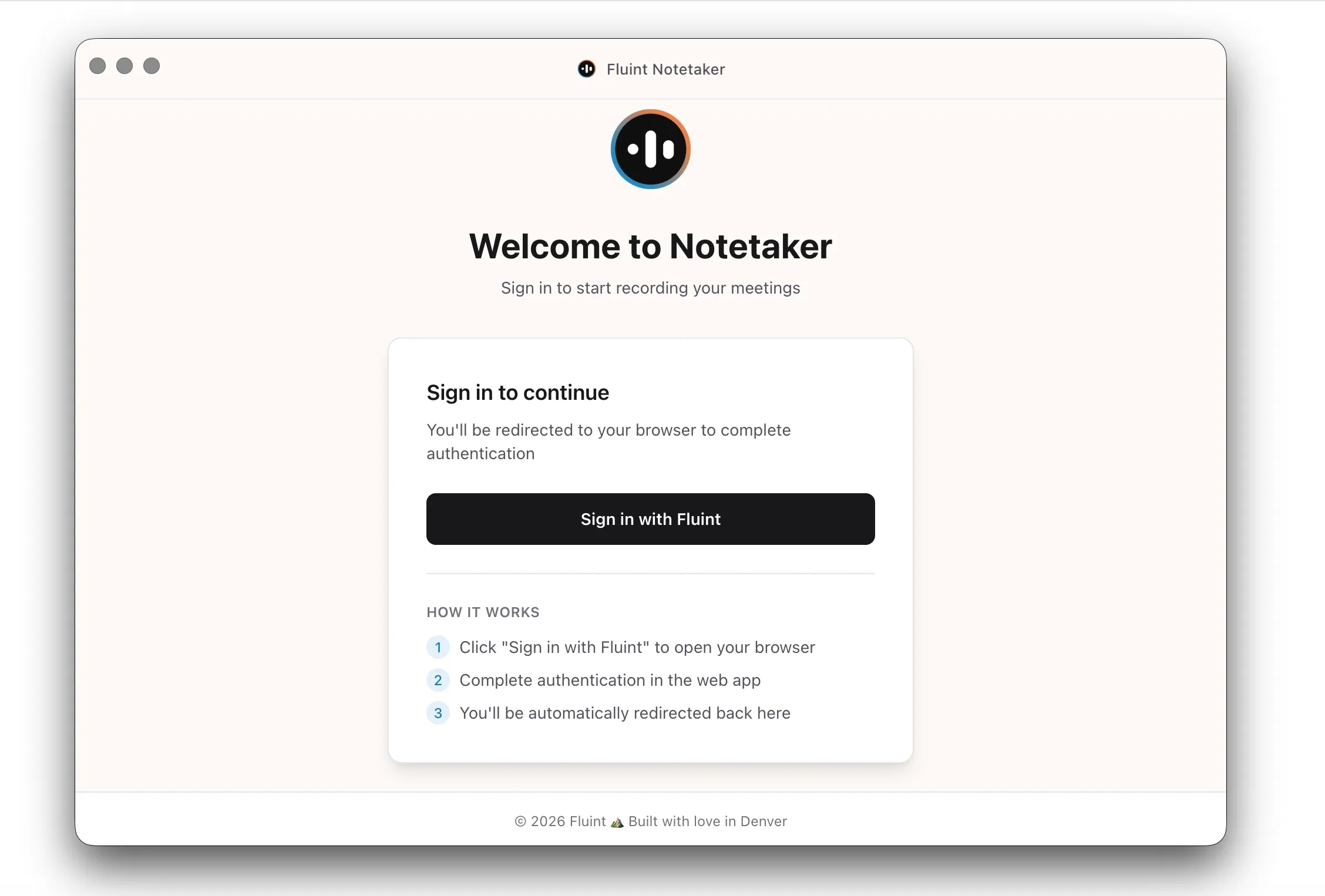
Desktop Notetaker is a native desktop app that records audio directly from your computer. Because it runs locally, there’s no need for a bot to join your calls, and no extra participants appear in meetings.
You can mark meetings as private at any time. Private recordings stay visible only to you and are excluded from shared features like AI context, discovery gaps, or team-wide insights.
The app lets you associate a meeting with a deal whenever it makes sense, including before the call starts or while the recording is still in progress. This prevents recordings from getting lost or needing to be matched up later.
Desktop Notetaker automatically detects when you join a Zoom, Microsoft Teams, or Google Meet call and prompts you to start recording with a single click. You can also record meetings without connecting a calendar at all by simply opening the app and hitting record.
Getting Started
- Download the Desktop Notetaker for Mac from the Individual Integrations page under Settings
- Complete the quick setup wizard to grant permissions
- Sign in with your existing Fluint account
- You're ready to record
The app lives in your menu bar for quick access, and you'll receive notifications when meetings are detected.
Platform Availability
Desktop Notetaker is available now for macOS. Windows support is coming soon.

Let’s see if there’s a good fit
We’ll look at how other GTM teams are already: